Overview
Active Directory Certificate Services (AD CS) is the Windows Server role that provides Public Key Infrastructure (PKI) services — issuing X.509 certificates for authentication, encryption, code signing, and TLS. It integrates tightly with Active Directory, enabling domain-joined devices and users to receive certificates automatically via Group Policy.
A well-designed AD CS deployment is foundational security infrastructure. A misconfigured one is a lateral-movement goldmine — ESC1 through ESC13 vulnerabilities (as catalogued by SpecterOps) allow domain privilege escalation through abusable certificate templates.
PKI Hierarchy Design
Two-Tier Hierarchy (Recommended for Most Organisations)
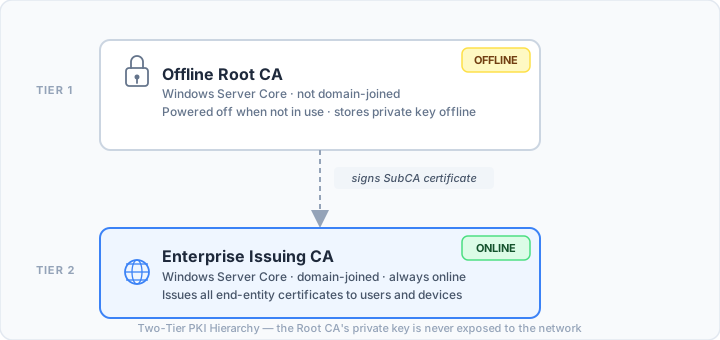
Why keep the Root CA offline?
If the issuing CA is compromised, the attacker can only mis-issue certificates that chain to that CA — they cannot forge the root. Taking the Root CA offline eliminates its attack surface to near-zero. Rotate the Root CA certificate every 10–20 years; the issuing CA certificate every 5 years.
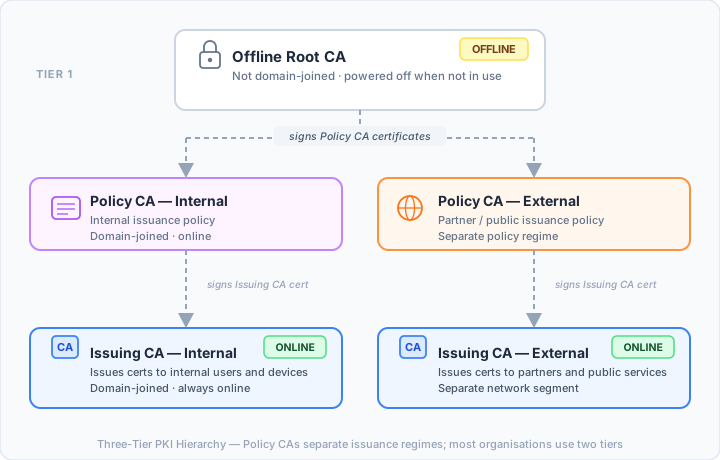
Three-Tier Hierarchy
Add a Policy CA between Root and Issuing when you need to operate multiple issuing CAs under different policy regimes (e.g., internal vs. external issuance, or separate business units with different assurance levels). Most organisations do not need this complexity.
Single CA (Not Recommended)
A single online Enterprise Root CA is common in lab environments and small deployments. Avoid it in production: the Root CA being online and domain-joined exposes your trust anchor to compromise.
Installation
Offline Root CA
The Root CA should run on Windows Server Core with no network interface (or a permanently disabled NIC). It does not need to be domain-joined.
# Install the AD CS role (no management tools needed on Server Core)
Install-WindowsFeature ADCS-Cert-Authority

# Configure as Standalone Root CA
Install-AdcsCertificationAuthority `
    -CAType StandaloneRootCA `
    -CACommonName "Contoso Root CA" `
    -KeyLength 4096 `
    -HashAlgorithmName SHA256 `
    -ValidityPeriod Years `
    -ValidityPeriodUnits 20 `
    -CryptoProviderName "RSA#Microsoft Software Key Storage Provider" `
    -Force
Key parameters to set immediately after install:
# Root CA validity for certificates it issues (SubCA certs)
certutil -setreg CA\ValidityPeriodUnits 10
certutil -setreg CA\ValidityPeriod "Years"

# Force CRL overlap period (prevents gaps during slow publishing)
certutil -setreg CA\CRLOverlapPeriodUnits 12
certutil -setreg CA\CRLOverlapPeriod "Hours"

# Root CA CRL publication interval (long — root rarely revokes)
certutil -setreg CA\CRLPeriodUnits 1
certutil -setreg CA\CRLPeriod "Years"

Restart-Service certsvc
Enterprise Issuing CA
The issuing CA is domain-joined and always online. Install it on a dedicated member server — do not co-locate with a domain controller.
# Install role and management tools
Install-WindowsFeature ADCS-Cert-Authority, RSAT-ADCS-Mgmt

# Configure as Enterprise Subordinate CA
Install-AdcsCertificationAuthority `
    -CAType EnterpriseSubordinateCA `
    -CACommonName "Contoso Issuing CA 01" `
    -KeyLength 4096 `
    -HashAlgorithmName SHA256 `
    -CryptoProviderName "RSA#Microsoft Software Key Storage Provider" `
    -OutputCertRequestFile "C:\CARequest\IssuingCA.req" `
    -Force
This produces a certificate signing request (.req). Copy it to the offline Root CA on physical media, sign it there, then bring the signed certificate back and install it:
# On Root CA — sign the SubCA request
certreq -submit -attrib "CertificateTemplate:SubCA" IssuingCA.req IssuingCA.cer

# On Issuing CA — install the signed certificate
certutil -installcert C:\IssuingCA.cer
Restart-Service certsvc
CDP and AIA Configuration
CDP (CRL Distribution Point) and AIA (Authority Information Access) extensions tell certificate consumers where to:
- Download the CRL to check for revocation (CDP)
- Download the CA certificate chain (AIA)
- Query OCSP (AIA)
These URLs must be reachable from all clients that will validate certificates issued by this CA — including clients outside the domain, partners, and internet-facing services if you issue public-facing TLS certs.
# On the Issuing CA — set CDP and AIA extensions
# Replace pki.contoso.com with your actual PKI web server FQDN

$crlURL   = "http://pki.contoso.com/pki/%3%8%9.crl"
$aiaURL   = "http://pki.contoso.com/pki/%2%3.crt"
$ocspURL  = "http://ocsp.contoso.com/ocsp"
$ldapCRL  = "ldap:///CN=%7%8,CN=%2,CN=CDP,CN=Public Key Services,CN=Services,%6%10"
$ldapAIA  = "ldap:///CN=%7,CN=AIA,CN=Public Key Services,CN=Services,%6%11"

# Remove defaults, then add clean URLs
certutil -setreg CA\CRLPublicationURLs "1:$env:SystemRoot\System32\CertSrv\CertEnroll\%3%8%9.crl\n10:$ldapCRL\n2:$crlURL"
certutil -setreg CA\CACertPublicationURLs  "1:$env:SystemRoot\System32\CertSrv\CertEnroll\%2%3.crt\n3:$ldapAIA\n32:$aiaURL\n2:$ocspURL"

Restart-Service certsvc

# Publish CRL immediately after restart
certutil -crl
Variable substitution tokens (certutil):
| Token | Value |
|---|---|
%1 |
Server DNS name |
%2 |
CA sanitised name |
%3 |
CRL name suffix |
%6 |
Config DN |
%7 |
CA short name |
%8 |
CRL name suffix (delta) |
%9 |
Delta CRL suffix |
%10 |
CDP container |
%11 |
AIA container |
PKI Web Server (IIS)
Host CRL and CA certificate files on a simple IIS site. HTTP is required — HTTPS for CDP/AIA creates a chicken-and-egg problem because clients need to validate the cert on the HTTPS site to download the CRL they need to validate it.
# On your PKI web server
Install-WindowsFeature Web-Server, Web-Mgmt-Console

# Create virtual directory pointing to CertEnroll share
# IIS Manager → Default Web Site → Add Virtual Directory
# Alias: pki   Physical path: \\IssuingCA\CertEnroll

# Allow double escaping (required for delta CRL filenames with '+')
# In IIS, select the /pki vdir → Request Filtering → Edit Feature Settings
# → Allow double escaping: True
In web.config for the pki virtual directory:
<configuration>
  <system.webServer>
    <security>
      <requestFiltering allowDoubleEscaping="true" />
    </security>
    <staticContent>
      <mimeMap fileExtension=".crl" mimeType="application/pkix-crl" />
      <mimeMap fileExtension=".crt" mimeType="application/pkix-cert" />
    </staticContent>
  </system.webServer>
</configuration>
CRL Configuration
The CRL (Certificate Revocation List) is the signed list of revoked certificate serial numbers that relying parties download to check revocation status.
# Issuing CA — recommended CRL settings
certutil -setreg CA\CRLPeriodUnits 1
certutil -setreg CA\CRLPeriod "Weeks"          # Base CRL published weekly

certutil -setreg CA\CRLDeltaPeriodUnits 1
certutil -setreg CA\CRLDeltaPeriod "Days"      # Delta CRL published daily

certutil -setreg CA\CRLOverlapPeriodUnits 12
certutil -setreg CA\CRLOverlapPeriod "Hours"   # Overlap prevents gaps

Restart-Service certsvc
certutil -crl   # Publish immediately
| Setting | Recommended | Notes |
|---|---|---|
| Base CRL validity | 1 week | Shorter = lower staleness risk; longer = lower bandwidth |
| Delta CRL validity | 1 day | Only contains changes since last base CRL |
| Overlap period | 12 hours | New CRL published before old one expires |
OCSP (Online Certificate Status Protocol)
OCSP provides real-time revocation checking without downloading the full CRL. It is preferred for modern applications and is required for short-lived certificates.
# Install OCSP responder role on a separate server (or the issuing CA)
Install-WindowsFeature ADCS-Online-Cert, RSAT-ADCS-Mgmt

# Configure via Server Manager GUI or:
Add-CAOnlineResponder `
    -OCSPUri "http://ocsp.contoso.com/ocsp" `
    -CAName "Contoso Issuing CA 01" `
    -UseAllCACerts
OCSP Signing Certificate: The OCSP responder needs an OCSP Signing certificate issued by the CA it serves. Create a template for this (see Certificate Templates section) and configure the responder to auto-enroll for it.
OCSP signing certificates should have short validity (7 days) and auto-renew — this limits the window if the OCSP server is compromised.
Certificate Templates
Certificate templates define what certificates can be issued: key usage, validity period, subject name source, enrollment permissions, and issuance requirements.
Viewing and Managing Templates
# List templates published on the issuing CA
certutil -catemplates

# Open the Certificate Templates MMC snap-in
certtmpl.msc

# Publish a template to the issuing CA
Add-CATemplate -Name "WebServer" -Force
Recommended Template Settings
Web Server (TLS)
| Setting | Value |
|---|---|
| Compatibility | Windows Server 2012 R2 / Windows 8.1 |
| Subject name | Supplied in request (requester provides SAN) |
| Key usage | Digital Signature, Key Encipherment |
| Extended key usage | Server Authentication (1.3.6.1.5.5.7.3.1) |
| Key size (minimum) | 2048-bit RSA or P-256 ECDSA |
| Validity | 1 year |
| Renewal | 6 weeks before expiry |
| Enroll permissions | Authenticated Users (or specific service account group) |
| CA manager approval | Not required (use with caution for automation) |
User Authentication (Smart Card / Certificate)
| Setting | Value |
|---|---|
| Subject name | Built from AD (UPN in Subject Alternative Name) |
| Key usage | Digital Signature |
| Extended key usage | Client Authentication, Smart Card Logon |
| Validity | 1 year |
| Private key | User protected (smart card) or exportable (never for auth certs) |
| Enroll permissions | Domain Users (auto-enrollment) |
Computer (Machine Authentication)
| Setting | Value |
|---|---|
| Subject name | Built from AD (DNS name) |
| Key usage | Digital Signature, Key Encipherment |
| Extended key usage | Client Authentication, Server Authentication |
| Validity | 1 year |
| Enroll permissions | Domain Computers |
| Auto-enrollment | Enabled |
Code Signing
| Setting | Value |
|---|---|
| Subject name | Supplied in request |
| Key usage | Digital Signature |
| Extended key usage | Code Signing (1.3.6.1.5.5.7.3.3) |
| Validity | 2 years |
| CA manager approval | Required — code signing certs are high-value targets |
| Enroll permissions | Restricted group (Developers, CI/CD service accounts) |
Dangerous Template Settings to Avoid
These are the settings that underpin most AD CS privilege escalation techniques:
| Setting | Risk | Mitigation |
|---|---|---|
| CT_FLAG_ENROLLEE_SUPPLIES_SUBJECT | Allows requester to specify any Subject / SAN including Domain Admin UPNs (ESC1) | Only enable on templates where the requester must supply the subject, and restrict enroll permissions tightly |
| Any Purpose EKU or no EKU | Certificate can be used for any purpose, including authentication (ESC2) | Always specify explicit, minimal EKU set |
| Agent enrollment allowed | Allows one account to enrol on behalf of another (ESC3) | Only enable for specific managed enrolment scenarios; restrict permissions |
| Owner = low-privilege user | Allows template modification (ESC4) | Template owner should always be Domain Admins or Enterprise Admins |
| Enroll permissions = Domain Users + CA approval not required | Any domain user can obtain a cert with dangerous settings | Always scope enroll ACL to minimum required group |
# Audit for ESC1-vulnerable templates (supply subject + low-privilege enroll)
# Requires PSPKI module or Certify/Certipy tools
Import-Module PSPKI
Get-CertificateTemplate | Where-Object {
    $_.Settings.SubjectName -match 'EnrolleeSupplied' -and
    ($_.Security | Where-Object { $_.Principal -match 'Domain Users' -and $_.Rights -match 'Enroll' })
}
Auto-Enrollment
Auto-enrollment via Group Policy allows domain-joined computers and users to automatically receive and renew certificates without manual intervention.
Configuring Auto-Enrollment GPO
Group Policy Management → Create or Edit a GPO linked to the domain or OU

Computer Configuration → Windows Settings → Security Settings
  → Public Key Policies → Certificate Services Client - Auto-Enrollment
    → Enroll certificates automatically: Enabled
    → Renew expired certificates, update pending certificates: Checked
    → Update certificates that use certificate templates: Checked

User Configuration → Windows Settings → Security Settings
  → Public Key Policies → Certificate Services Client - Auto-Enrollment
    → (Same settings as above)
Verifying Auto-Enrollment
# Force GPO update and trigger certificate enrollment
gpupdate /force
certutil -pulse

# Check enrolled certificates
Get-ChildItem Cert:\LocalMachine\My
Get-ChildItem Cert:\CurrentUser\My

# View auto-enrollment events
Get-WinEvent -LogName "Microsoft-Windows-CertificateServicesClient-AutoEnrollment/Operational" |
    Select-Object TimeCreated, Message -First 20
NDES (Network Device Enrollment Service)
NDES implements the Simple Certificate Enrollment Protocol (SCEP), allowing network devices (routers, switches, firewalls, MDM-managed mobile devices) to enrol for certificates without domain membership.
# Install NDES
Install-WindowsFeature ADCS-Device-Enrollment, Web-Server, Web-Asp-Net45

# Configure NDES
Install-AdcsNetworkDeviceEnrollmentService `
    -ApplicationPoolIdentity `
    -RAName "Contoso NDES RA" `
    -RAEmail "pki@contoso.com" `
    -RACompany "Contoso" `
    -RADepartment "IT Security" `
    -RACity "London" `
    -RAState "England" `
    -RACountry "GB" `
    -SigningProviderName "Microsoft Strong Cryptographic Provider" `
    -EncryptionProviderName "Microsoft Strong Cryptographic Provider" `
    -Force
NDES security considerations:
- Place NDES in a DMZ or on a dedicated server — it exposes an unauthenticated HTTP endpoint
- Integrate with Intune or a third-party MDM for device identity verification before certificate issuance
- Require CA Manager approval on the NDES template for high-assurance device certificates
- Monitor NDES for unusual certificate request volumes (potential abuse)
Key Archival
Key archival lets the CA escrow the private key of encryption certificates, allowing recovery if the user loses their key. Never archive signing or authentication private keys.
# Enable key archival on the CA
certutil -setreg CA\UseDefinedCACertInRequest 0

# Create a Key Recovery Agent (KRA) certificate
# Use the built-in "Key Recovery Agent" template
# The KRA account should be a dedicated service account, not a personal account

# Enable archival on an encryption certificate template
# Template Properties → Request Handling → Archive subject's encryption private key: Checked
Key Recovery
# Find the archived key by requester or serial number
certutil -getkey <serial_number> output.blob

# Recover the key (requires KRA certificate and private key)
certutil -recoverkey output.blob recovered_key.pfx
Auditing & Monitoring
AD CS generates events in the Security and Application event logs. Enable CA auditing for all operations in a production deployment.
# Enable all CA audit events
certutil -setreg CA\AuditFilter 127
Restart-Service certsvc
CA Audit Filter values:
| Bit | Value | Event |
|---|---|---|
| 0 | 1 | Start/stop AD CS |
| 1 | 2 | Back up/restore CA |
| 2 | 4 | Issue/revoke certificate |
| 3 | 8 | Store revoked certificate to CA database |
| 4 | 16 | Store certificate request to CA database |
| 5 | 32 | Revoke certificate |
| 6 | 64 | Publish CRL |
Set AuditFilter 127 to enable all events.
Key Event IDs to Monitor
| Event ID | Source | Meaning |
|---|---|---|
| 4886 | Security | Certificate request received |
| 4887 | Security | Certificate issued |
| 4888 | Security | Certificate request denied |
| 4889 | Security | Certificate request set to pending |
| 4890 | Security | CA settings changed |
| 4896 | Security | One or more rows deleted from CA database |
| 4898 | Security | CA template loaded |
| 4899 | Security | CA template updated |
| 4900 | Security | CA template security updated |
Alert on 4890 (CA settings changed) and 4896 (database rows deleted) — these should almost never occur in production.
Certificate Expiry Monitoring
# List all issued certificates expiring within 60 days
certutil -view -restrict "NotAfter>=now,NotAfter<=(now+60:00)" `
    -out "RequestID,RequesterName,CommonName,NotAfter,CertificateTemplate"

# Export expiry report to CSV
certutil -view -restrict "NotAfter>=now,NotAfter<=(now+60:00)" `
    -out "RequestID,RequesterName,CommonName,NotAfter" csv > expiring.csv
Backup & Recovery
Backing Up the CA
# Back up the CA database and private key (interactive — prompts for password)
certutil -backupca -password P@ssw0rd! C:\CABackup

# Non-interactive version (for scheduled tasks)
certutil -backupdb C:\CABackup\DB
certutil -backupkey -password P@ssw0rd! C:\CABackup

# Alternatively, back up via CA MMC:
# certsrv.msc → Right-click CA → All Tasks → Back up CA
The backup includes:
- CA database (issued certs, pending requests, revocation info)
- CA private key and certificate (as a PKCS#12 / PFX file)
Scheduled Backup Script
# Save as Backup-CA.ps1 and schedule via Task Scheduler
$BackupRoot = "\\fileserver\PKIBackups"
$Date       = Get-Date -Format "yyyy-MM-dd"
$BackupPath = "$BackupRoot\$Date"
$Password   = (Get-Secret -Name "CABackupPassword").Password  # from Windows Credential Manager

New-Item -ItemType Directory -Path $BackupPath -Force | Out-Null

certutil -backupdb "$BackupPath\DB"
certutil -backupkey -password $Password "$BackupPath"

# Verify backup integrity
certutil -verifystore "$BackupPath\*.p12" | Out-File "$BackupPath\verify.log"

# Retain 30 days of backups
Get-ChildItem $BackupRoot -Directory |
    Where-Object { $_.CreationTime -lt (Get-Date).AddDays(-30) } |
    Remove-Item -Recurse -Force
Restoring the CA
# Stop the CA service
Stop-Service certsvc

# Restore database
certutil -restoredb C:\CABackup\DB

# Restore private key
certutil -restorekey C:\CABackup\<CA>.p12 -password P@ssw0rd!

# Restart
Start-Service certsvc
Security Hardening
Role Separation
AD CS supports four roles. Assign them to separate accounts in high-assurance environments:
| Role | Default | Purpose |
|---|---|---|
| CA Administrator | Domain Admins | Configure the CA |
| Certificate Manager | CA Administrators | Issue, revoke, and manage certificates |
| CA Auditor | CA Administrators | Manage CA audit log |
| CA Backup Operator | CA Administrators | Backup/restore the CA |
# Assign roles via certutil or CA MMC
# certsrv.msc → Right-click CA → Properties → Security

# Add a dedicated Certificate Manager account
certutil -administer -addacct "CONTOSO\CA-CertMgr" "Certificate Managers"
Hardening Checklist
☐ Root CA is offline and not domain-joined
☐ Issuing CA is on a dedicated Server Core (no GUI) member server
☐ CA server is not a domain controller
☐ All CA administrative roles are assigned to dedicated service accounts (not personal accounts)
☐ CA server has no internet access (outbound firewall rule)
☐ Physical access to CA server is restricted (server room, no KVM-over-IP)
☐ BitLocker enabled on CA server OS and data volumes
☐ TPM-bound BitLocker on the issuing CA (keys unlocked at boot by TPM)
☐ Uninstall Protection token stored in PAM vault, not in scripts
☐ CA audit logging enabled (AuditFilter = 127)
☐ CA database backup runs nightly; backup tested for restore quarterly
☐ CDP and AIA URLs resolve from all client networks
☐ CRL overlap period configured to prevent gaps
☐ No templates with CT_FLAG_ENROLLEE_SUPPLIES_SUBJECT + open enroll ACL
☐ Template owners are Domain Admins or Enterprise Admins
☐ ESC1-8 assessment run (Certipy, Certify, or PSPKI audit)
☐ NDES server (if deployed) is in a separate tier, not the issuing CA
☐ Expiry alerting configured for CA certificate (flag at 90 and 30 days)
☐ Windows Firewall configured to allow only: RPC (for CA), LDAP (for AD queries), HTTP (CDPs), and management ports
Firewall Rules for Issuing CA
# Allow inbound certificate enrollment (RPC endpoint mapper + dynamic ports)
New-NetFirewallRule -DisplayName "AD CS — RPC Endpoint Mapper" `
    -Direction Inbound -Protocol TCP -LocalPort 135 -Action Allow

New-NetFirewallRule -DisplayName "AD CS — RPC Dynamic" `
    -Direction Inbound -Protocol TCP -LocalPort 49152-65535 -Action Allow

# Allow inbound from PKI web server only (for CRL file sync)
New-NetFirewallRule -DisplayName "AD CS — CRL Sync" `
    -Direction Inbound -Protocol TCP -LocalPort 445 `
    -RemoteAddress "10.10.10.50" -Action Allow  # PKI web server IP

# Block all other inbound
New-NetFirewallRule -DisplayName "AD CS — Block All Other Inbound" `
    -Direction Inbound -Action Block -Priority 9000
Assessing Your PKI with Certipy
Certipy is the standard open-source tool for auditing AD CS deployments. Run it from a domain-joined machine or via authenticated LDAP queries.
# Find all certificate templates and assess for known misconfigurations
certipy find -u 'user@contoso.com' -p 'Password' -dc-ip 10.10.10.1

# Check for ESC1 (template allows subject supply + low-privilege enroll)
certipy find -vulnerable -u 'user@contoso.com' -p 'Password' -dc-ip 10.10.10.1

# Output a BloodHound-compatible JSON for visualisation
certipy find -u 'user@contoso.com' -p 'Password' -dc-ip 10.10.10.1 -bloodhound
Common ESC findings and remediations:
| ESC | Vulnerability | Remediation |
|---|---|---|
| ESC1 | Template allows SAN supply + low-priv enroll | Remove CT_FLAG_ENROLLEE_SUPPLIES_SUBJECT or restrict enroll ACL |
| ESC2 | Any-purpose EKU or no EKU | Add explicit, minimal EKU; remove Any Purpose |
| ESC3 | Certificate Request Agent template + delegated enroll | Restrict enrollment agent permissions |
| ESC4 | Template owner is low-privilege | Set owner to Domain Admins / Enterprise Admins |
| ESC6 | CA has EDITF_ATTRIBUTESUBJECTALTNAME2 flag |
certutil -setreg CA\EditFlags -EDITF_ATTRIBUTESUBJECTALTNAME2 |
| ESC7 | Low-privilege user has CA Manage CA right | Audit and tighten CA security ACL |
| ESC8 | AD CS HTTP endpoints with NTLM auth (relay target) | Disable HTTP enrollment endpoints or require HTTPS+EPA |
# Fix ESC6 — remove the dangerous flag that allows SAN in any request
certutil -setreg CA\EditFlags -EDITF_ATTRIBUTESUBJECTALTNAME2
Restart-Service certsvc
Common Administrative Tasks
Revoking a Certificate
# Revoke by serial number (get from CA database or certutil -view)
certutil -revoke <serial_number> 0   # 0 = Unspecified
certutil -revoke <serial_number> 1   # 1 = Key Compromise
certutil -revoke <serial_number> 5   # 5 = Cessation of Operation

# Publish updated CRL immediately after revocation
certutil -crl
Viewing the CA Database
# List all issued certificates
certutil -view -restrict "Disposition=20" -out "RequestID,RequesterName,CommonName,NotAfter"

# Find certificates for a specific user
certutil -view -restrict "RequesterName=CONTOSO\jsmith"

# Find all valid computer certificates
certutil -view -restrict "CertificateTemplate=Machine,Disposition=20"
Renewing the CA Certificate
The issuing CA certificate must be renewed before it expires. The new certificate must have a validity that falls within the root CA certificate's remaining validity.
# On the Issuing CA — generate a renewal request
certutil -renewCert ReuseKeys   # Keep same key pair
# or
certutil -renewCert             # Generate new key pair (preferred)

# Submit the .req to the Root CA (offline), install the returned .cer
certutil -installcert IssuingCA_Renewed.cer
Restart-Service certsvc
See Also
- Microsoft PKI Design Guide — official AD CS documentation
- SpecterOps — Certified Pre-Owned — ESC1-8 vulnerability research
- Certipy — AD CS enumeration and attack tool (offensive/defensive)
- PSPKI PowerShell Module — PowerShell PKI management library
- RFC 5280 — Internet X.509 PKI Certificate and CRL Profile